
3D Print Design Tips: Modelling Parts That Print First Time
Nuho India Team
Nuho Creative Team
Key Takeaways & TL;DR
- Overhangs print clean at 45-60 degrees on a standard 0.4 mm nozzle; past 60 degrees most setups need supports, and support-facing faces come out rougher than bed-facing ones.
- A 0.4 mm nozzle lays about 0.45 mm per perimeter, so design walls at 0.45, 0.9, 1.35 or 1.8 mm for 1-4 perimeters; geometry thinner than one perimeter cannot be printed at all.
- Leave at least 0.3 mm clearance for parts that must move - printers hold roughly 0.2 mm accuracy, and elephant foot on the first layers eats the rest.
- FFF parts are stronger along a layer than across it: print flat tags on the bed, and split-and-glue anything that needs a second orientation.
- Nuho India prints fused-plate PLA+ tags at about 215 degrees C, 14-18 g each, artwork to despatch in 24-48 hours at Rs 129-149.
What makes a 3D model print first time?
A model prints first time when it respects four limits of the machine. Every layer needs material under it, every wall needs at least one extrusion width, fitting parts need clearance, and the geometry must be a solid, closed shape. Get those four right and the slicer only has to tune temperature and speed; get them wrong and no preset rescues the job. These 3D print design tips all reduce to that one rule: the decisions that decide a print are made in CAD, before the printer heats up. A fused filament printer builds a part one horizontal layer at a time from G-code produced by a slicer, so anything the model asks for that the machine physically cannot do — mid-air islands, hair-thin walls, zero-gap fits — turns into plastic spaghetti. This guide covers the design rules that matter, where they come from, and how they apply to the flat, lettered parts we print every day at Nuho India in Coimbatore, Tamil Nadu.
How much overhang can a printer print without supports?
The Prusa Knowledge Base is blunt about it: a 3D printer can cleanly print overhanging structures at an angle between 45 and 60 degrees, depending on nozzle diameter and settings. Machines with full 360° part cooling reach up to 75° without supports, while a smaller 0.25 mm nozzle may need support below 45°. The standard desktop nozzle is 0.4 mm, and short horizontal bridges print fine with no support at all.
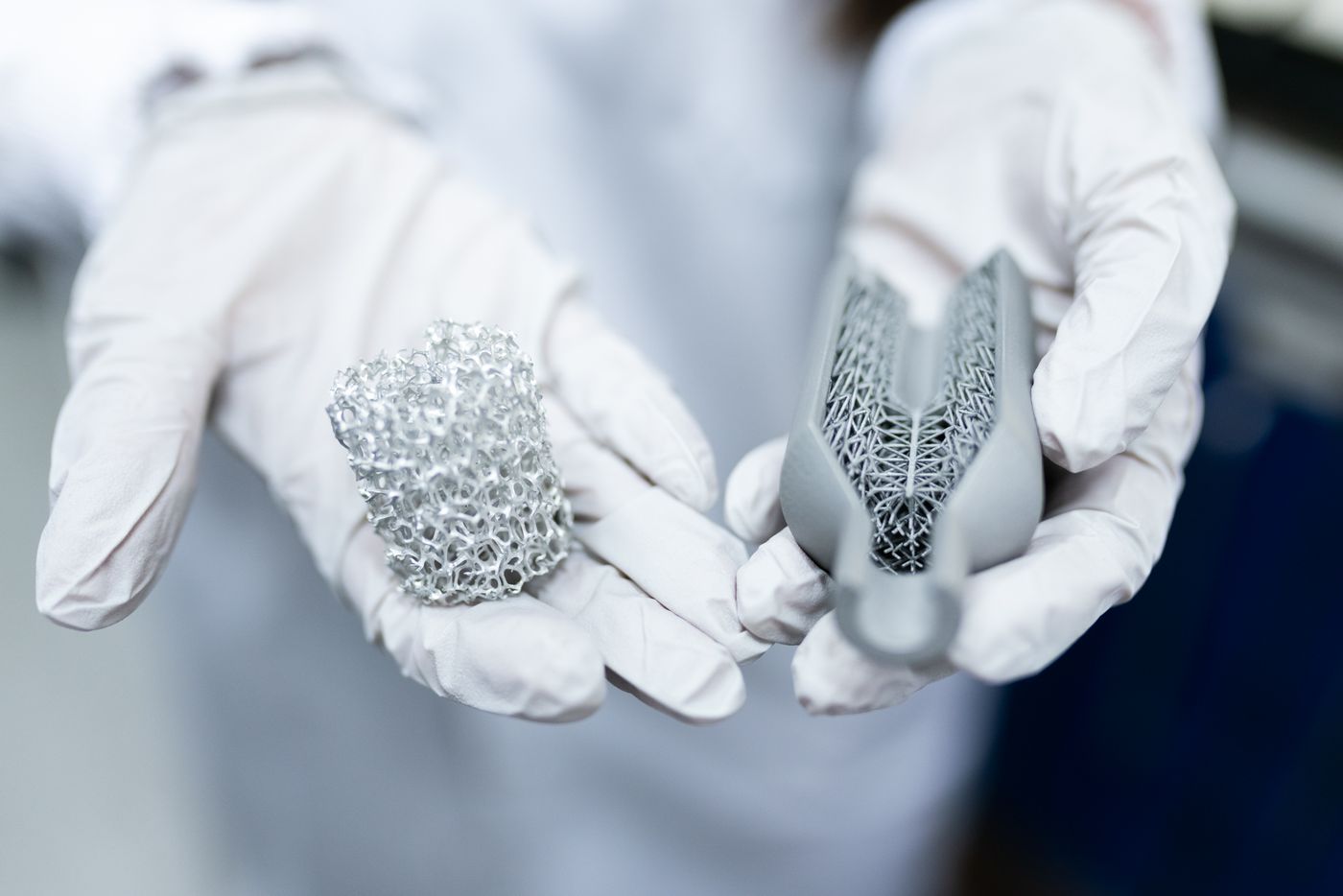 3d print design tips — Laboratory setting showing gloved hands holding innovative 3D printed metal structures
Photo: ThisIsEngineering / Pexels
Translate that into modelling habits:
- Keep visible overhangs at 45° or better unless you plan to sand the underside.
- Round holes horizontally, not as flat-topped slots — a teardrop or diamond profile removes the unsupported ceiling.
- Chamfer instead of fillet on bed-facing edges. A fillet pointing at the bed creates a steep overhang; a chamfer gives a clean finish.
- Never hide the face you care about underneath a support. Surfaces printed above supports are consistently rougher than side walls or top fill.
- Split the part if a better orientation is only reachable in two pieces — most slicers include a cut tool for exactly this.
| Design choice | What the printer does | Typical result |
|---|---|---|
| Overhang under 45° | Prints without support | Clean underside |
| Overhang 45–60° | Prints, quality varies with cooling | Usable, may need light sanding |
| Overhang beyond 60° | Needs supports on most setups | Scarring, extra post-work |
| Flat ceiling in mid-air | Cannot print at all | Sagging or failed section |
Prices and specs of printers change — check the manufacturer's own documentation before you commit to a design.
What wall thickness should your model have?
Wall thickness is not a taste question, it is arithmetic. With the common 0.4 mm nozzle, the extrusion width in PrusaSlicer works out to about 0.45 mm per perimeter, which gives you a simple ladder:
| Perimeters in the model | Approximate printable wall |
|---|---|
| 1 | 0.45 mm |
| 2 | 0.90 mm |
| 3 | 1.35 mm |
| 4 | 1.80 mm |
Figures are approximations and vary with slicer settings. The hard line underneath the table: walls thinner than one nozzle perimeter are not printable. A slicer's "detect thin walls" option can merge two paths into a single pass, but it cannot repair geometry that is narrower than one extrusion — that material simply disappears from the toolpath. Design walls as multiples of the extrusion width instead, and keep tiny features (logo details, hair-thin letter stems) at least one perimeter wide. If you want to see how nozzle choice shifts these numbers, our guide to 3D printer nozzle sizes from 0.2 mm to 0.8 mm walks through the trade-off between detail and strength.
How much tolerance do fitting parts need?
If two parts have to slot together, the gap has to be designed in — it will not appear by itself. Prusa's guidance is that an Original Prusa is accurate to at least 0.2 mm, but that there is no single universal clearance value: it depends on model size, horizontal or vertical orientation, the geometry of the interlocking features, calibration, settings, and the material's tendency to warp or shrink. As a starting number for parts that must move — a hinge, a swivel, a snap hook — Prusa suggests at least 0.3 mm of clearance.
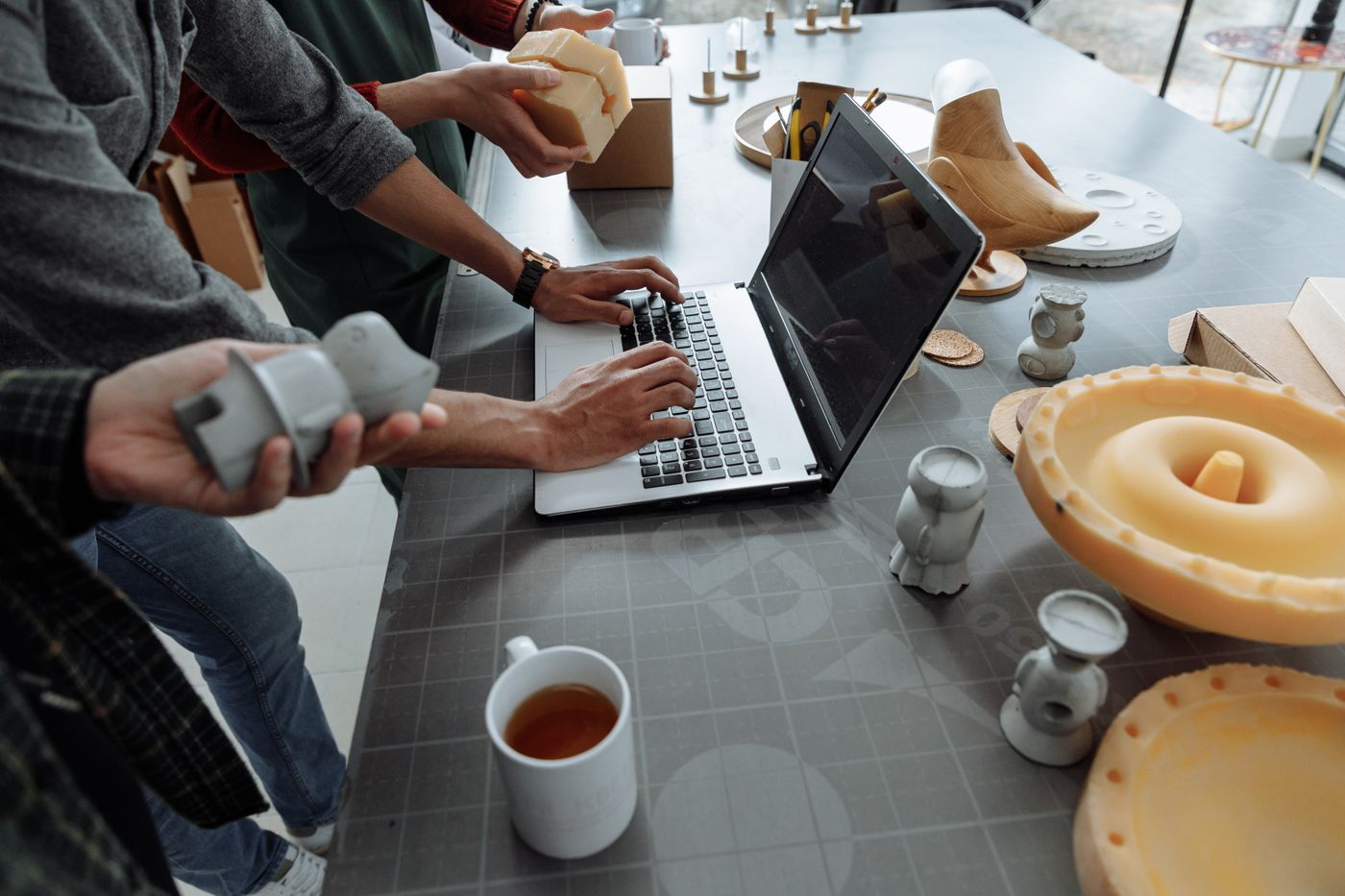 3d print design tips — Hands on laptop in a creative workspace with 3D models and prototypes
Photo: Thirdman / Pexels
A practical first-pass scheme:
- Static press fit: 0.1–0.2 mm per side, then adjust after the first print.
- Sliding fit: 0.3 mm per side.
- Moving hinge or snap: 0.3 mm minimum, tested with the actual filament.
- First-layer squash: the elephant foot from a hot first layer eats clearance on the bottom few millimetres — most slicers have elephant-foot compensation for this.
The honest part: every printer, filament brand and ambient temperature shifts these numbers, so the real answer is a small test coupon before the final part. A parametric CAD model lets you change one variable and re-export in seconds, which is why iteration beats guessing.
Should you print flat, upright or split the model?
Orientation decides strength as much as it decides surface quality. Like wood, FFF prints are stronger in one direction than another — layers bond to each other well, but the bond between layers is the weak plane. A part loaded across its layer lines fails far sooner than the same part loaded along them.
That leads to four working rules:
- Large flat faces go on the bed. The bed side is perfectly flat and smooth; anything hanging over support is not.
- Split and glue when one orientation cannot serve both looks and strength. Clean, grease-free glue faces and alignment pegs hide the seam; small parts show seams more than large ones.
- Check that the model is manifold. A solid, closed shape slices; holes in the surface or stray internal geometry stop the slicer cold. Most CAD tools have a "make manifold" or "cap holes" repair for this.
- Check that your circles are really circles. Modelling software smooths curves on screen with shaders, but the printer only sees the polygon you exported — low side counts show up as faceted edges on a round tag.
For a step-by-step on the software side — sketch, extrude, export — see our guide to 3D printer design software for beginners.
Designing flat tags, nameplates and keychain-style parts
This is where the rules get commercial. A name keychain is essentially a thin plate with text, a hole and a loop — which means it sits right on top of every failure mode above: thin letter stems, a small hole, a flat body loaded in the pocket. Our 3D printed keychain process covers the production side, but the design reasoning is worth stating plainly because it is the same reasoning any maker should use:
- Letters are fused to a continuous backing plate, not glued on as cut-outs. Individual thin letters narrower than one extrusion would vanish or snap; fused to a plate they become one solid, manifold body with no fragile islands.
- Letter stems stay around 2.5 mm or wider, comfortably above the one-perimeter line.
- The ring hole sits around 5–6 mm, big enough for a standard split ring and free of the first-layer elephant foot.
- Parts print flat, never upright, so pocket torsion works across the plate, not across the layer lines.
- PLA+ is printed at around 215 °C, where layer adhesion is strong enough for a tag that gets dropped, twisted and washed.
The result is a tag of roughly 14–18 g that is waterproof and survives years of daily carry. If you would rather not model any of it, the finished custom keychain and sticker range at Nuho India is printed to exactly these rules — artwork to despatch in 24–48 hours, ₹129–₹149 for a keychain — and the design decisions above are already baked in.
 3d print design tips — A close-up of a woven blue abstract pattern against a green background, showcasing digital artistry
Photo: Steve A Johnson / Pexels
Pre-print checklist: seven checks before you hit slice
Run this every time; it takes two minutes and catches most of what goes wrong:
- Manifold check — solid, closed geometry, no stray internal faces.
- Overhang review — anything past 45° either supported, reoriented or redesigned.
- Wall thickness — every wall a multiple of the extrusion width, nothing below one perimeter.
- Clearances — 0.3 mm minimum for anything that moves, measured at the tightest point.
- Orientation — the face you want to see is on the bed, and the load path runs with the layers.
- Detail floor — small text and logos at least one extrusion wide, circles with enough sides.
- Test print the risky feature — one small coupon of the fit, the hole or the snap before the full part.
Design for the machine you actually own, keep the geometry honest, and the first print becomes the final print more often than not.
Frequently Asked Questions
More Articles You Might Like
3D Printed Decorative Boxes: Desk Storage That Looks Good
A 3D printed decorative box in PLA+ turns desk clutter into storage that lasts: fused lids, custom names, honest heat limits and 24-48 h manufacturing.
3D Printed Houses: What the Hype Misses
3D printed house cons, honestly covered: reinforcement gaps, building-code delays, printer costs and the speed myth in construction 3D printing.
3D Printing Keychains: Settings, Strength and Batch Cost
Want to 3D print for keychains? Use these PLA+ slicer settings, strength limits and real batch costs to turn one spool into keychains that last long.